1DM Download for PC
Run 1DM on Windows & Mac
Download 1DM for PC and learn how to run the Android download manager on Windows or Mac using a compatible Android emulator.
1DM Download for PC
If you are searching for 1DM Download for PC, you can use 1DM on a Windows PC or Mac through a compatible Android environment such as an emulator. 1DM is primarily an Android application developed by Vicky Bonick, rather than a native Windows desktop download manager. BlueStacks currently provides instructions for running 1DM on PC and Mac through its Android environment.
Can You Use 1DM on PC?
Yes, 1DM can be run on a computer through an Android emulator. This allows an Android application to operate inside an Android environment on Windows or macOS.
The advantage of this approach is that you can use the familiar 1DM interface on a larger display while accessing your computer’s keyboard, mouse, and storage.
However, this is different from having a native Windows version of 1DM.
How to Download 1DM on PC
To run 1DM on a Windows PC or Mac, you generally need an Android emulator that supports the application.
The basic process is:
- Download and install a compatible Android emulator.
- Open the emulator.
- Sign in to Google Play if required.
- Search for 1DM: Browser & Video Download.
- Select the application developed by Vicky Bonick.
- Install the application.
- Open 1DM from the emulator’s application screen.
BlueStacks currently documents this approach for running 1DM on both PC and Mac.
1DM Features You Can Use on PC
Running 1DM inside an Android environment gives you access to many of the application’s Android download-management functions.
Download Management
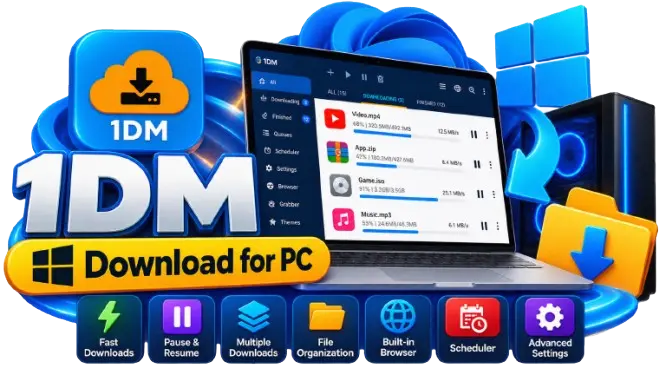
1DM provides controls for managing supported downloads, including pause and resume functionality and multiple downloads.
Built-In Browser
The application includes an integrated browser that connects browsing with downloading.
Media Detection
1DM can detect supported downloadable media from compatible webpages. Website technology and content restrictions can affect whether a particular file can be detected.
Torrent Support
The Android application supports torrent-related downloads, including compatible magnet links and torrent files.
Background Downloads
Supported downloads can continue while you work with other applications, although emulator and computer settings can affect performance.
File Organization
1DM can organize supported downloads by file type and provide a dedicated interface for managing downloaded content.
How to Install 1DM on Windows
The installation process depends on the Android emulator you choose.
Step 1: Install an Android Emulator
Choose an Android emulator that supports your Windows version and meets its hardware requirements.
Step 2: Open the Emulator
Launch the emulator after installation and complete its initial setup.
Step 3: Open Google Play
If Google Play is available, sign in with your Google account and search for 1DM.
Step 4: Install 1DM
Find 1DM: Browser & Video Download and verify that the developer is Vicky Bonick before installing.
Step 5: Launch 1DM
Once installation finishes, open the application and configure your preferred download and storage settings.
PC Requirements
Your requirements will depend largely on the Android emulator rather than 1DM itself.
For example, BlueStacks currently lists Windows 7 or later, macOS 11 or later, a compatible Intel, AMD, or Apple Silicon processor, at least 4 GB RAM, and available disk space among its stated requirements. Requirements can change, so check the emulator’s current specifications before installation.
1DM on PC vs Native Desktop Download Managers
There is an important difference between using 1DM through an emulator and using a native Windows download manager.
An emulator adds another software layer between the application and your computer. A native desktop download manager is built specifically for Windows or macOS.
1DM may still be useful if you already prefer its Android interface and features, particularly its integrated browser and Android-oriented download workflow.
Can You Install 1DM APK Directly on Windows?
Not normally. An Android APK is intended for Android and cannot simply be opened like a standard Windows .exe installer.
To use an APK on a PC, you need an Android-compatible environment such as an emulator.
Is 1DM Available for Mac?
1DM can be run on Mac through a compatible Android environment. BlueStacks currently provides a PC/Mac method for running the application.
The exact requirements and installation steps depend on the emulator and macOS version you are using.
1DM PC Download Safety
Always obtain the Android application from a trustworthy source and verify the developer information before installation.
The official Google Play listing identifies Vicky Bonick as the developer of 1DM.
Avoid modified APK files or unknown downloads that claim to be a special “1DM PC version.” A genuine Android APK does not become a native Windows program simply by changing its filename.
Frequently Asked Questions
Is 1DM available for PC?
1DM is an Android application, but it can be run on a PC through a compatible Android emulator.
Can I install 1DM directly on Windows?
An Android APK is not a native Windows installer. Use a compatible Android environment instead.
Can I use 1DM on Mac?
Yes, a compatible Android environment can be used to run the Android application on Mac.
Is 1DM free?
The standard 1DM application is distributed on Google Play, while availability and features can differ between editions. Check the current listing before installation.
Can 1DM download videos on PC?
When running the Android application through an emulator, supported 1DM media-detection and download functions can be used. However, website compatibility and platform restrictions still apply.
Conclusion
1DM for PC is primarily an Android application running through an Android-compatible environment rather than a native Windows program. If you want to use 1DM on a larger screen, an emulator provides a practical way to access the Android application on Windows or Mac.
Before installing, check your emulator’s current requirements, verify the 1DM developer, and use a trustworthy application source. This helps ensure that you are installing the intended version rather than an unofficial or modified package.